

Before you begin
Make sure you have:- A terminal open in a code project
- A Git repository (recommended for the full workflow demonstration)
Step 1: Install and start opensre
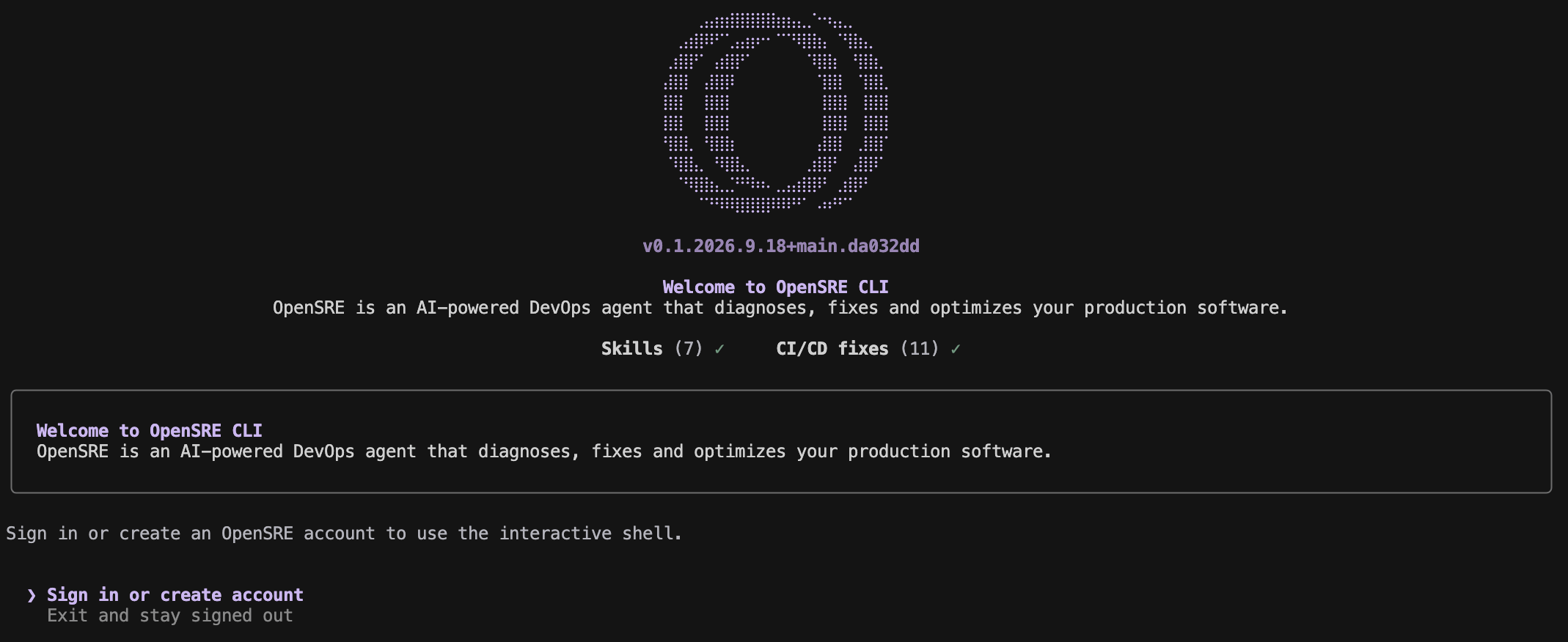
Step 2: Sign in
Choose Sign in or create account in the welcome screen. The browser opens the OpenSRE sign-up page, where you can use email or another enabled provider. Signing in activates the OpenSRE-hosted model, so you need no LLM key. Back in the terminal, OpenSRE confirms the session with the web app. If GitHub is not connected yet, the shell shows Connect GitHub to continue instead of the prompt: choose Open the dashboard to connect GitHub, connect your own account (or ask a workspace admin to connect one for everyone), then choose I’ve connected GitHub, continue. The shell opens once the app confirms the connection. If the sign-in screen comes back instead, see troubleshooting.Sign in over SSH or on a server
When the terminal runs on a different machine from your browser (an SSH session, a cloud VM such as EC2, or a container), the browser cannot hand the sign-in back to the terminal. OpenSRE prints a link and asks for a code instead:- Open the link in a browser on any device and sign in.
- Confirm that you started the sign-in, then choose Show sign-in code.
- Copy the code and paste it at the
Code:prompt.
SSH_CONNECTION, SSH_CLIENT, or SSH_TTY is set) and on Linux with neither DISPLAY nor WAYLAND_DISPLAY set. To choose yourself, run opensre account login --paste-code, or --no-paste-code to keep the browser redirect (for example through an SSH port forward).
The code works once, only in the terminal that started the sign-in, and expires five minutes after it is shown. Paste it only into a terminal you started yourself, and never send it to anyone. Pasting needs an interactive terminal, so --paste-code cannot be combined with --json.
Connecting GitHub works the same way over SSH. When the shell shows Connect GitHub to continue, choose Open the dashboard to connect GitHub, open the printed link in a browser on any device, connect GitHub there, then choose I’ve connected GitHub, continue. OpenSRE does not launch a browser on the server.
Step 3: Pick what to do
The first shell prompt asks what you want to do:opensre account login to load that connection on this machine. If it is
missing, the flow offers the app setup link. See
CI/CD analytics demo.
Choose C to go straight to the prompt. Type /demo to open the menu again at
any time, or start with opensre --skip-onboarding to skip it.
Step 4: Ask your first question
Choose either path — both use the same localopensre binary:
Interactive shell — start OpenSRE with no arguments and describe what’s going on in plain English:
--json output, and exit codes.
Inside the interactive shell, /help lists commands, /status shows the current setup, /effort changes reasoning effort, and /exit closes the shell.

opensre integrations setup <service> or /integrations setup <service> in the shell.
Good first tasks, once GitHub is connected:
Step 5: Keep up to date
Uninstall
To remove opensre and all its local data from your machine:--yes to skip the confirmation prompt:
Troubleshooting
opensreis not found: Open a new terminal, or add the bin directory printed by the installer toPATH.- The Linux binary does not start: Prebuilt binaries require glibc 2.35 or newer; use a supported distribution or the Docker guide.
makeis missing: See the development setup guide if you are working from source.- The demo menu did not appear: Menus need an interactive terminal. Run
opensrein a terminal window rather than through a pipe or a CI job, then type/demo. - “OpenSRE needs a connected GitHub account”: The hosted model, Slack and Telegram answers, and hosted-gateway prompts all wait for GitHub. Open the OpenSRE dashboard and finish Connect GitHub, or ask a workspace admin to connect GitHub for everyone, then retry. No credits are spent on a refused request.
- The sign-in screen comes back after you signed in: Run
opensre account status; it names what is wrong with the session (expired, revoked, or the web app unreachable). - Sign-in waits for browser approval and never finishes: The browser is on a different machine from the terminal. Run
opensre account login --paste-code; see Sign in over SSH or on a server.